8 Best AI Coding Assistance Tools for Next-Level Coding
Published: 10 Jan 2026
Have you ever stared at your screen and wondered why coding still feels slow, even with so many tools around? I felt the same until I tried the 8 best AI tools for coding that developers use today.
These tools guide your code, find issues fast, and help you stay focused. They make the work easier, even on busy days. Once I added these tools to my routine, my work felt lighter.
In this article, I will share the best coding AI tools that helped me a lot, and I believe they will make your work easier, too.
Let’s continue and uncover the next stage together.
Best AI Coding Assistant Tools
Today, many developers use tools for coding to save time and avoid common mistakes, and coding feels simple when you have the right tool by your side.
Here are the best coding tools you can start using today.
- GitHub Copilot
- Tabnine
- ChatGPT
- Qodo
- Amazon Q Developer
- AskCodi
- DeepCode AI
- IntelliCode
Let’s take a look at them one by one.
1. GitHub Copilot
GitHub Copilot is an AI tool that helps developers write code quickly and more efficiently. It acts like a smart coding partner by suggesting lines of code or complete functions as you type. It works with many programming languages such as Python, JavaScript, and Ruby, and runs directly inside editors like VS Code and JetBrains IDEs.
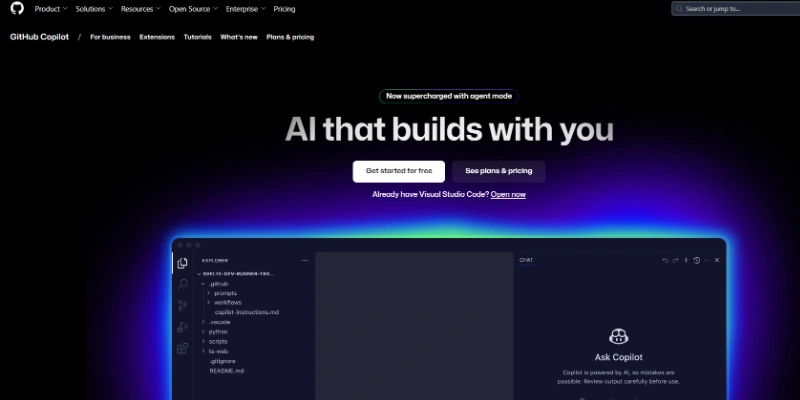
Copilot can turn comments into working code, reduce small errors, and save time on repetitive work. It is also helpful for beginners because it shows clear examples of how code should be written. However, its suggestions still need to be reviewed, as not all of them are always necessary or optimized.
Key Features
Here are the main features that make GitHub Copilot useful:
- Suggests full lines and functions based on context.
- Supports multiple programming languages.
- Works directly inside popular editors.
- Converts comments into working code.
- Helps reduce errors and repetitive work.
GitHub Copilot Pricing:
Here is the updated pricing for GitHub Copilot.
- Free Plan: $0 per month
- Pro Plan: $10 per month or $100 per year
- Pro+ Plan: $39 per month or $390 per year
- Business Plan: $19 per user each month
Pricing is not guaranteed and may change, so visit the official website for updates.
2. Tabnine
Tabnine is an AI coding assistant that focuses mainly on privacy-friendly code completion, which makes it very useful for companies and developers who do not want to share code online. Instead of depending only on cloud models, Tabnine lets you run AI suggestions locally, so your code stays protected.
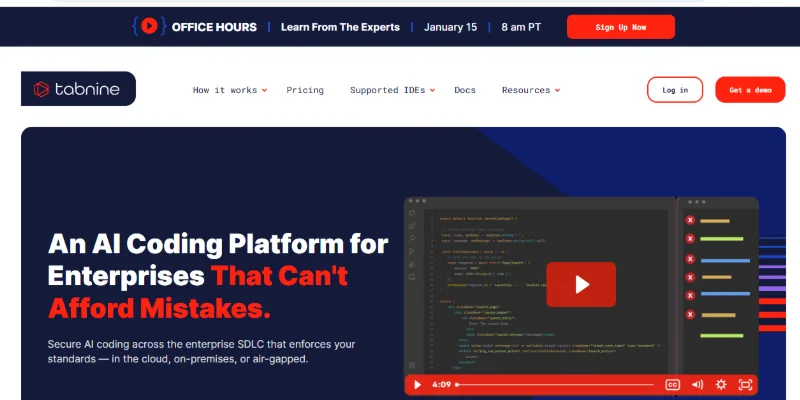
It supports popular languages like TypeScript, Python, Go, and C++, and it connects smoothly with editors such as VS Code, IntelliJ, and Sublime. It performs really well with backend code because the predictions stay clean and structured; still, it does not write complex logic like some other coding AI tools that generate long blocks automatically.
Key Features
Here are the key things that make this tool helpful for coding.
- Offers local AI models for better privacy.
- Learn from your own private codebase.
- Works smoothly with many editors.
- Gives clean and short suggestions.
- Helps with repetitive backend patterns.
Tabnine Pricing
Take a look at Tabnine’s newest pricing plans below.
- Free Plan: $0
- Pro Plan: $12 per month
- Enterprise Plan: custom amount
- Business Plan: $39 per user monthly
Pricing may change, so check the official site for the latest details.
3. ChatGPT
ChatGPT is an AI language model that assists developers and learners by generating code, explaining concepts, and solving problems efficiently. Unlike coding-only tools, it can answer questions, generate small programs, and guide you through learning new languages. ChatGPT works in a web browser or through integrated plugins in editors like VS Code.
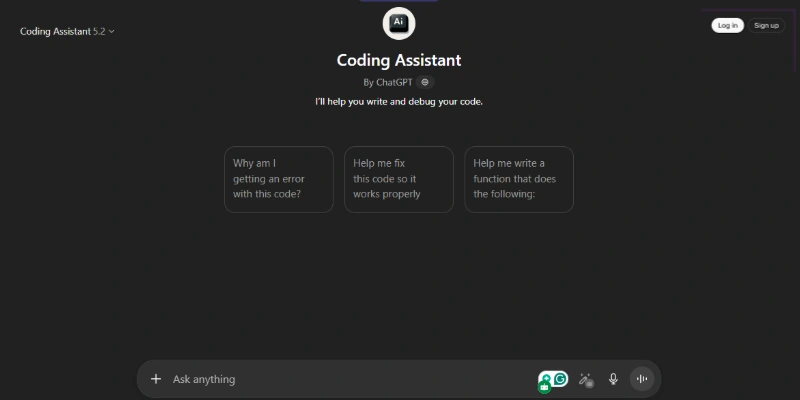
One of the best things about ChatGPT is that it doesn’t just write code; it explains it. If you are stuck, you can ask why a function works or how to improve your logic. It also helps clean up messy code and gives suggestions for better structure, but it doesn’t run your code, so you need to test the output yourself.
Key Features
The primary aspects that make ChatGPT helpful are.
- Can generate code snippets in many languages.
- Explains programming concepts in simple words.
- Helps debug and clean code.
- Works in browsers and with editor plugins.
- Provides quick learning support for beginners.
ChatGPT Pricing
Here is the updated pricing for ChatGPT:
- Free Plan: $0
- Plus Plan: $20 per month
- Business Plan: Custom
For the most up-to-date pricing, please refer to the official website.
4. Qodo
Qodo is a code quality tool that checks code quality and helps keep your project clean and safe. It finds errors, suggests changes, and even helps you create tests that make your project stronger over time. You can use it inside your code editor or connect it with your team projects on platforms like GitHub. It also helps prepare code reviews by checking your changes automatically. This saves time and enables you to avoid long review cycles.
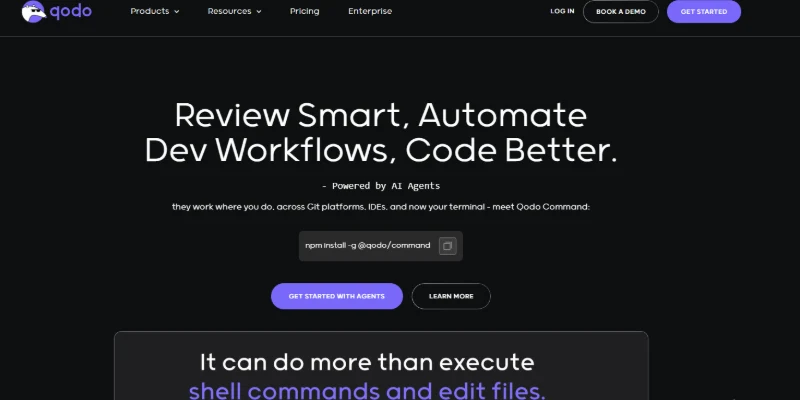
Qodo is helpful for solo developers and also small teams who want to build reliable software without doing everything by hand. It reduces common mistakes and guides you toward better coding habits. It works well for backend projects and apps that need good testing.
Key Features
Here are the main things Qodo can do:
- Checks code quality while you work on files.
- Write useful test cases automatically.
- Points out risky changes during updates.
- Works well with team projects and reviews.
- Helps keep code safe and clean overall.
Qodo Pricing
Here are the latest Qodo pricing plans.
- Starter Plan: Free
- Pro Plan: $25 to $35 per user each month
- Business Plan: Custom price
Current pricing is available on the official site and may change without notice.
5. Amazon Q Developer
Amazon Q Developer is a coding tool from Amazon that helps you write and improve code inside your projects. It does more than simple suggestions. It works well for large apps, cloud systems, and back-end development. Many developers use it when they build on Amazon Web Services (AWS), but you can also use it with normal projects.
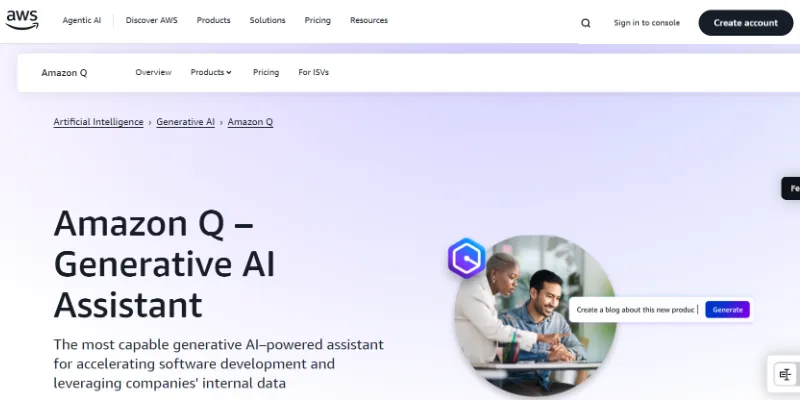
One strong thing about Amazon Q Developer is that it can handle tasks like fixing outdated cloud settings or old libraries, which saves a lot of time that normally goes into manual upgrades. Many tools do not focus on this, but Amazon Q does it very well. The tool also supports common editors like VS Code and JetBrains. You can use it during coding, testing, or when you review your work.
Key Features
Here are some things an Amazon Q Developer can do.
- Sees full codebase context before changes.
- Can auto-generate code, tests, and refactorings.
- Works across many languages and editors.
- Helps detect bugs, security issues, and outdated code.
- Helps update, document, and maintain complex projects.
Amazon Q Developer Pricing
Take a look at the newest pricing plans for Amazon Q Developer below.
- Free Plan: $0 per month
- Pro Plan: $19 per user per month
Prices may change without notice. Please refer to the official website for the most up-to-date information.
6. AskCodi
AskCodi is a coding assistant that helps developers quickly understand and write code. Unlike tools that only complete code, AskCodi can explain what your code does, suggest improvements, and generate short scripts based on your needs.
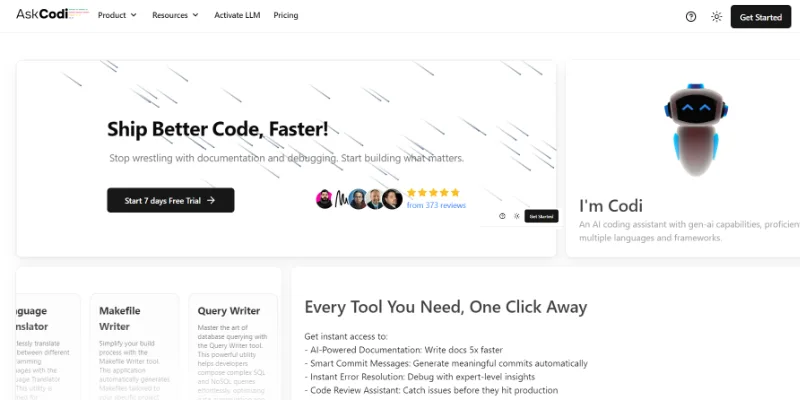
One thing about AskCodi is that it can help beginners learn while coding. You can type a question like “How do I sort a list in Python?” and it will give a clear explanation along with working code. It also highlights potential issues in your code and offers safer alternatives. For experienced developers, it speeds up routine tasks by suggesting ready-to-use snippets.
Key Features
Here’s what makes AskCodi helpful:
- Explains code in simple terms for developers.
- Suggests short, ready-to-use code snippets.
- Highlights potential errors and improvements.
- Works with many popular programming languages.
- It can be used inside common editors like VS Code.
AskCodi Pricing
Here is the updated pricing for AskCodi.
- Free Plan: $0 per month
- Premium: $149.99/year
- Ultimate: $349.99/year
Pricing access may change, so check the official site for the latest details.
7. DeepCode AI
DeepCode helps you find bugs, security holes, and weak spots in your code automatically. It reads through your whole codebase and gives feedback before problems go live. It spots errors that are hard to find by hand, even subtle mistakes that slip past normal testing. You can connect it to platforms like GitHub or GitLab and use it inside editors or in your continuous integration (CI) process. Because of this, you get help whether you code alone or work with a team.
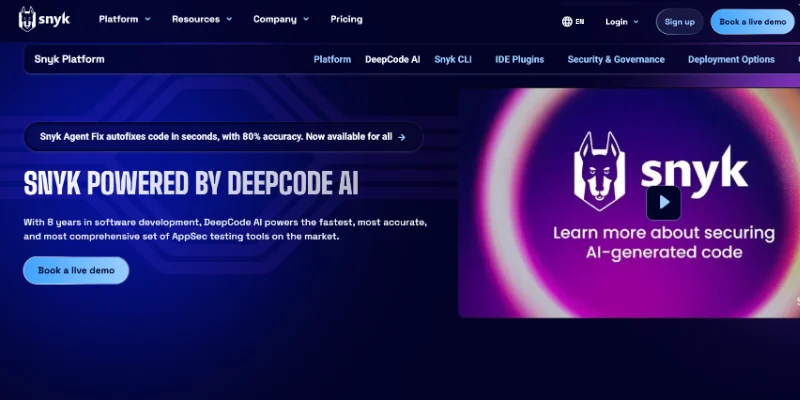
When you push new code (pull request or commit), DeepCode reviews changes. It warns you about possible risks, logic flaws, security vulnerabilities, or coding patterns that could cause trouble. Because DeepCode checks many files at once and understands code context, you don’t need to worry about only single‑file mistakes. It reviews overall code health, which helps when your project has many modules or grows over time.
Key Features
Here are the strengths of DeepCode:
- Finds hidden bugs and security risks beyond normal checks.
- Works with many languages and frameworks.
- Scans code automatically on commits or requests.
- Offers clear suggestions to fix issues.
- Helps keep big projects safe and maintainable.
DeepCode AI Pricing
Here is an updated pricing plan for DeepCode AI.
- Free Plan: $0
- Team Plan: $25 per month
- Enterprise Plan: Custom price
Prices can change, so be sure to visit the official site for the latest updates.
8. IntelliCode
IntelliCode helps developers code smarter by giving helpful suggestions as they type. It studies thousands of open-source projects. Then it uses that knowledge to guess what you might write next. This makes your coding faster and more accurate. It integrates smoothly with popular editors like Visual Studio and VS Code. Because it runs where you write, you don’t need to switch windows or search online.

Another thing about it is how IntelliCode learns from popular open-source projects. That means the advice you get follows common rules used by many experienced developers. So even if you are new to a language, you learn good habits from the start. It feels like someone is guiding your style slowly without forcing anything.
Key Features
Here are the main things IntelliCode does well.
- Gives suggestions based on real code examples.
- Works inside Visual Studio and VS Code.
- Supports many popular languages.
- Helps keep code clean and readable.
- Reduces typing and speeds up daily work.
IntelliCode Pricing
Here is the pricing information for Intellicode.
- Free Plan: $0
- Most developers do not need to pay anything because IntelliCode comes with Microsoft tools already. Larger companies using extra Microsoft services may have separate costs, but IntelliCode alone does not require a paid plan.
Who Should Use These AI Coding Tools?
These tools are designed to support different coding needs, from learning basics to handling real projects. If you match any of the points below, this list is for you.
- Beginners: Learning syntax, logic, and coding structure
- Students: Practicing assignments and understanding concepts
- Freelancers: Writing code faster and managing multiple tasks
- Professional Developers: Improving speed, quality, and accuracy
- Startup Teams: Reducing errors and speeding up development
Conclusion
In this article, we’ve covered the 8 best AI tools for coding in detail. My advice is to treat AI as a smart helper rather than a full replacement for your own thinking and problem-solving.
Use AI-assisted coding with caution, because AI might miss security practices or best coding standards. Keep pushing forward and study each AI-powered coding tool you find, because your journey in tech becomes stronger with every new tool you understand.
Now let’s move to the FAQs. There’s still more to explore and learn.
FAQs
If you’re more curious about the best AI tools for coding, here are some common questions people often ask.
AI coding tools help beginners understand code patterns and common syntax. They also provide suggestions while you type, which saves time. You can learn by observing the suggestions and comparing them with your original idea.
Many tools are popular, but the right one depends on your goals. Some tools are great for learning, while others focus on speeding up big tasks. Beginners might prefer something simple with hints. Intermediate users can look for tools with more advanced features. Try different tools and see which feels comfortable.
Sometimes the tool may misunderstand your code or context. First, try reading the error message carefully to see what it means. You can also rewrite your prompt more clearly. If the error keeps showing, restart the tool or refresh your editor.
- Check brackets and indentation.
- Look for missing semicolons or spelling mistakes.
No, beginners can absolutely use them. These tools are designed to help anyone write code more confidently. Professionals just use them in bigger projects. Beginners often benefit most because they learn by example. So don’t hesitate to try.
Sometimes the tool misreads instructions or uses outdated data. Make sure your prompt is very clear about what you want. You should also double-check your input or sample code. Restarting your IDE or plugin might help.
- Update the tool regularly.
- Look for plugin compatibility issues.
You learn faster because you see how things should look. It also shows alternative ways to solve a problem. You don’t have to spend hours searching online. It turns learning into hands-on practice.
Don’t accept every suggestion without reading it carefully. Some suggestions may not fit your project or logic. Always double-check security and performance. Test your code before trusting it fully.
- Review each line before using it.
- Don’t rely on automation alone.
Not completely. AI helps, but human thinking is still important. You must understand logic, structure, and problem-solving. AI cannot feel the purpose of your project the way you can. Use AI as a helper, not a replacement.
This could be due to low memory or background apps running. Try closing apps you don’t need. You can also check if your tool needs an update. Sometimes switching browsers helps.
- Try a lightweight editor.
- Restart your device if needed.
Some tools require online access, so be careful with sensitive information. Avoid pasting private API keys or passwords. Use trusted tools with clear privacy policies. Check security settings regularly. Staying cautious protects your work and your system.






- Be Respectful
- Stay Relevant
- Stay Positive
- True Feedback
- Encourage Discussion
- Avoid Spamming
- No Fake News
- Don't Copy-Paste
- No Personal Attacks
- Be Respectful
- Stay Relevant
- Stay Positive
- True Feedback
- Encourage Discussion
- Avoid Spamming
- No Fake News
- Don't Copy-Paste
- No Personal Attacks
